
How to Make a Hotel Lobby AI Video: Step-by-Step
Transform two still photos into a dynamic two-person Hotel Lobby style video. This guide walks you through every step on HotelLobby.live, from running a free photo check in your browser to downloading your finished 720p MP4. You will have everything you need to create your first clip and share it with friends.
What you need
Preparing clear photos makes creation straightforward and rewarding. Have these ready before opening the studio:
- Two clear photos: Two separate images, each highlighting one person or one pet.
- Balanced lighting: Front-facing shots with even light give the AI video model clear facial features.
- A web browser: The check and preview run directly in your browser on desktop or mobile.
For lighting and framing suggestions, read our photo guide.
Step 1: Choose your photos
Select two portraits from your photo library, each featuring a single subject looking toward the camera.
High-resolution camera files in standard JPG, PNG, or WebP formats work smoothly in the studio. Take both photos at a similar distance so the two subjects have matching framing.
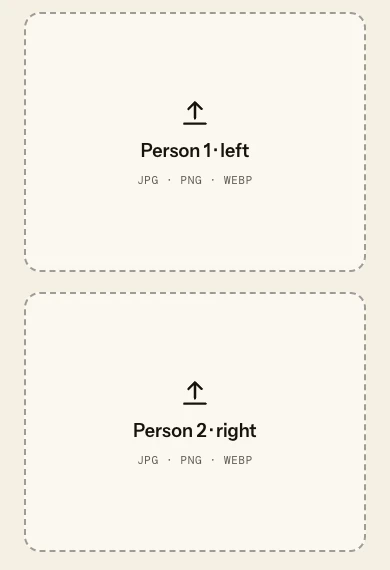
Select two individual photos to build your two-person video.
Add your files to the upload cards on Create your video.
Step 2: Run the free photo check
Before spending credits, use our free photo check. It runs directly inside your browser tab to evaluate four practical metrics:
- Resolution: Checks pixel dimensions for sufficient detail.
- Brightness: Checks light levels for even exposure.
- Contrast: Checks for flat contrast and lost highlight or shadow detail.
- Sharpness: Evaluates edge clarity to confirm crispness.
Each photo receives an overall 0 to 100 score, plus a status and practical feedback for each metric. Photos stay locally in your browser. If you leave to pay, they save locally in your browser to restore within 1 hour and clear when you return; any draft not restored clears on your next visit.
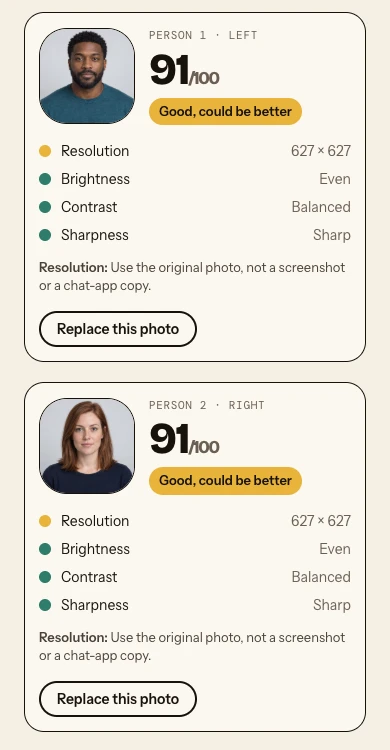
The free in-browser check shows a photo score and four image-quality checks before any credits are used.
This check evaluates image attributes rather than detecting faces, serving as a helpful baseline rather than a guarantee of final video results. You can swap photos in your browser anytime to test different shots before moving forward.
Step 3: View your free scene preview
After checking your photos, click to view a static scene preview.
This preview positions both subjects together in the orange studio layout. Like the photo check, it runs locally in your browser without uploading files or deducting credits. If you leave to pay, your photos save locally in your browser to restore within 1 hour and clear when you return; any draft not restored clears on your next visit.
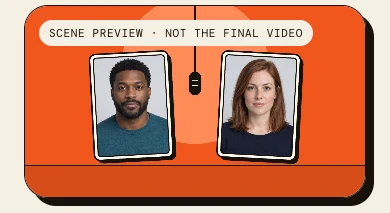
Check your static scene preview to confirm composition before creating your video.
This static preview lets you check how the two photos fit the composition before generating a moving video.
Step 4: Pick your aspect ratio and duration
Select your video format:
- Landscape (16:9): Classic widescreen format for desktop screens.
- Portrait (9:16): Full-screen vertical format for TikTok, Instagram Reels, and YouTube Shorts feeds.
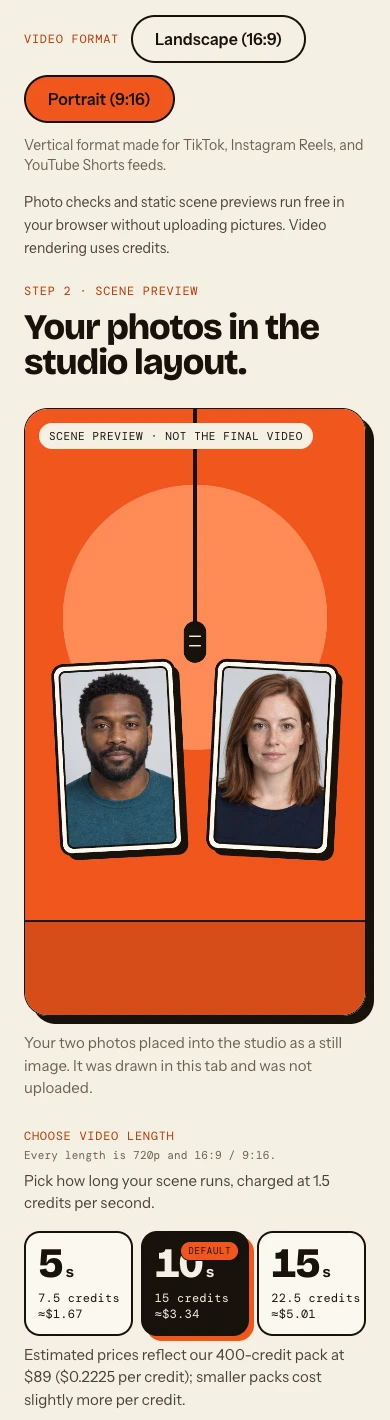
Choose between landscape or portrait orientation and select video duration.
Then choose your duration: 5 seconds, 10 seconds, or 15 seconds. Every video renders in crisp 720p MP4.
Step 5: Add lyrics or an action prompt
You can personalize your scene by adding custom lyrics or describing character movements.
A brief prompt helps guide character gestures, pacing, and energy, such as nodding to the beat, smiling at the camera, or stepping together.
This optional prompt step adds personal flair to your scene.
Step 6: Create, wait, and download your MP4
When your settings are ready, click create to start rendering.
The AI video model animates your characters into a finished clip. Our published sample clips took about 2 to 5 minutes once rendering began; these measured runs are a guide for your wait. While waiting, explore 10 unedited sample clips on our examples showing real 10-second 720p results from fictional AI-generated portraits.
Download your finished 720p MP4 directly to your device. Completed videos remain saved in your account for 7 days for easy sharing.
Step 7: Check your finished video
Play your clip to review character movement and expressions.
After your video is ready, take a moment to check that the visuals and lyrics match what you had in mind. Return to the studio anytime to test new photo pairings or switch between landscape and portrait.
How credits work
Video generation on HotelLobby.live uses a clear credit system:
- Standard rate: 1.5 credits per second.
- 5-second clip: 7.5 credits.
- 10-second clip: 15 credits.
- 15-second clip: 22.5 credits.
- Automatic refunds: If generation fails, credits return automatically to your balance.
- Credit packs: Choose $2.90 for 1 video, $9.90 for 3 videos, or $24.90 for 8 videos on our pricing page.
Each video in a pack means the default 10-second format. Videos of 5 or 15 seconds use the balance proportionally. The browser photo check and static scene preview are free and do not upload photos.
Quick fixes for photo preparation
Clear source photos provide a solid starting point. Use these preparation tips before creating your video:
- Even out dim lighting: Face a bright window or soft room light to remove facial shadows.
- Improve sharpness: Use original camera files rather than compressed screenshots, and keep the face in clear focus.
- Adjust face framing: Crop so the face fills about one-third of the frame.
- Select front-facing poses: Choose photos where the person or pet looks forward, giving the model clear facial features.
- Wear different colours: Choose a different top colour for each person to make the two subjects easy to tell apart.
Frequently asked questions
How long does video generation take?
Our published sample clips took about 2 to 5 minutes for a 720p MP4; these measured runs are a guide for your wait.
Can I use photos of pets?
Yes. Each photo can feature one person or one pet. You can pair two pets or one person with a pet. Choose clear, well-lit portraits looking toward the camera.
How long are photos kept?
Local photo checks and scene previews run in your browser without uploading files. If you leave to pay, your photos and settings save locally in your browser to restore within 1 hour and clear when you return; any draft not restored clears on your next visit. When you generate a video directly, source photos delete from our storage when rendering finishes or fails, backed by an automatic cleanup starting 55 minutes after rendering begins. Copies held by our rendering partner follow their own retention rules, and finished videos remain in your account for 7 days.
What happens if generation fails?
If a generation fails, credits refund automatically to your balance so you can adjust settings and create your video again.
Can I make vertical videos for mobile feeds?
Yes. Choose the portrait aspect ratio at Step 4 to produce a 720p vertical MP4 ready for TikTok, Instagram Reels, and YouTube Shorts.
Read our privacy policy for the full retention details.
Ready to create your first video?
Make your own Hotel Lobby video step by step. Check your photos for free in your browser, preview your scene, and create your video.
Sources
- File API - Web APIs | MDNdeveloper.mozilla.org
CoversMDN reference for the File API, which lets web applications access files the user makes available.
- Canvas API - Web APIs | MDNdeveloper.mozilla.org
CoversMDN reference for the Canvas API, which draws graphics with JavaScript and the HTML canvas element.
- Bytedance Seedance 2.0 Minidocs.kie.ai
CoversModel inputs, supported settings, and prompt guidance.